Blocking automatic firmware updates
The TV may nag you to update every time you start it or wake it from standby. To disable
the update notifications to prevent accidental updates by you or your family members, I highly recommend blocking these domains in your router or firewall, then reboot your TV. Blocking these 6 domains has no other
side effects; it just prevents firmware updates from being downloaded. You can still
install the version you want with the USB update method.
Block these domains in your router even if your TV is rooted (homebrew loads very late
in the boot process, and the TV may have already resolved the update domains before
homebrew can block them):
| Domain | Purpose |
|---|---|
| snu.lge.com | Prevents TV from checking for firmware updates |
| su.lge.com | Prevents the updates from being downloaded |
| su-ssl.lge.com | Prevents the updates from being downloaded |
| snu-dev.lge.com | Prevents TV from checking for firmware updates |
| su-dev.lge.com | Prevents the updates from being downloaded |
| nsu.lge.com | Prevents TV from checking for firmware updates (NSU mode) |
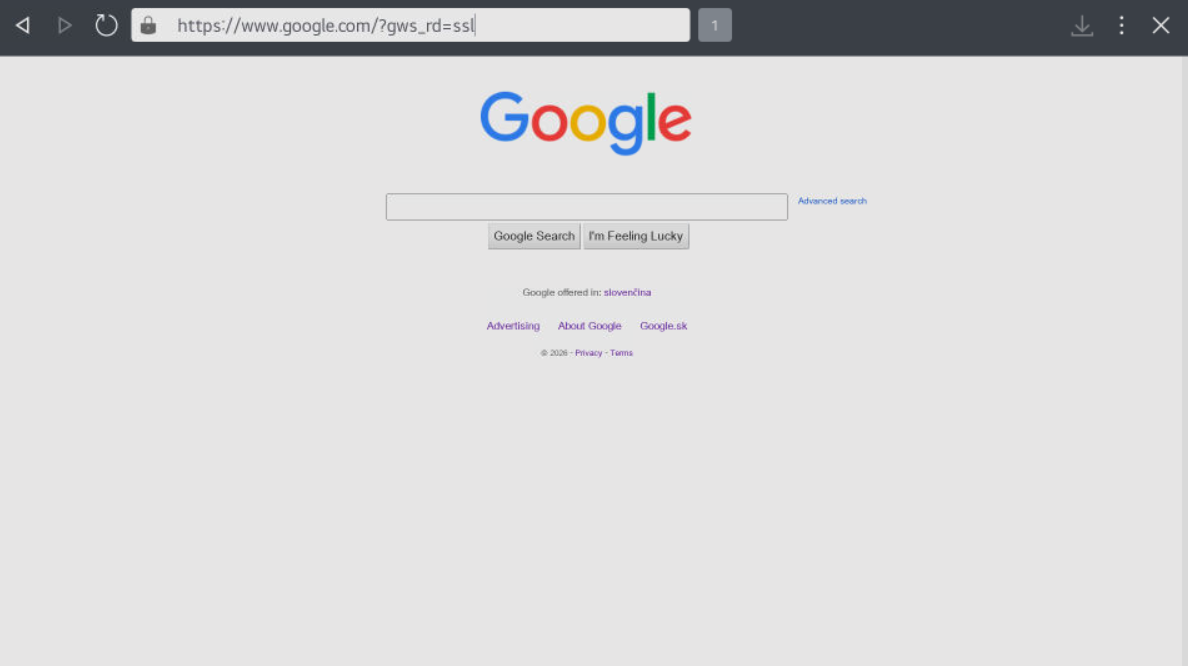
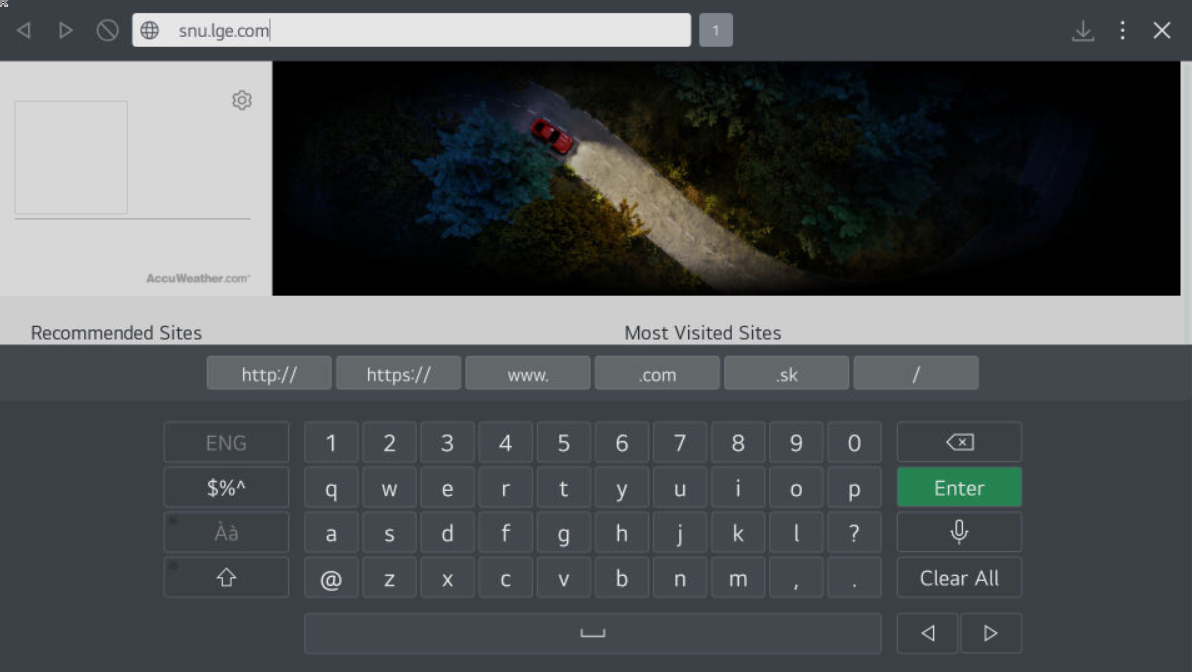
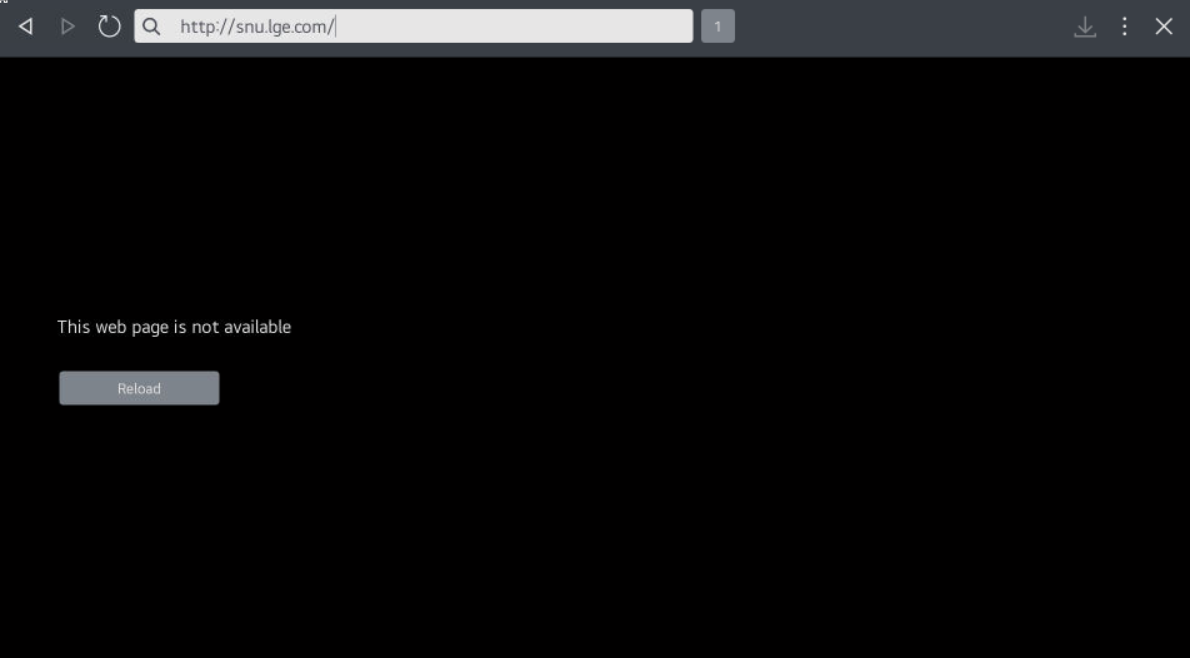
Verify DNS blocking in built-in web browser: visit
snu.lge.com in the TV's web browser - it should fail to load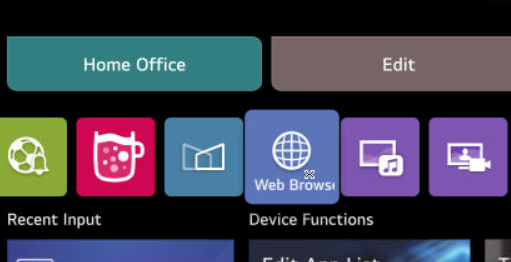
visit
google.com in the TV's web browser - it should still be able to load